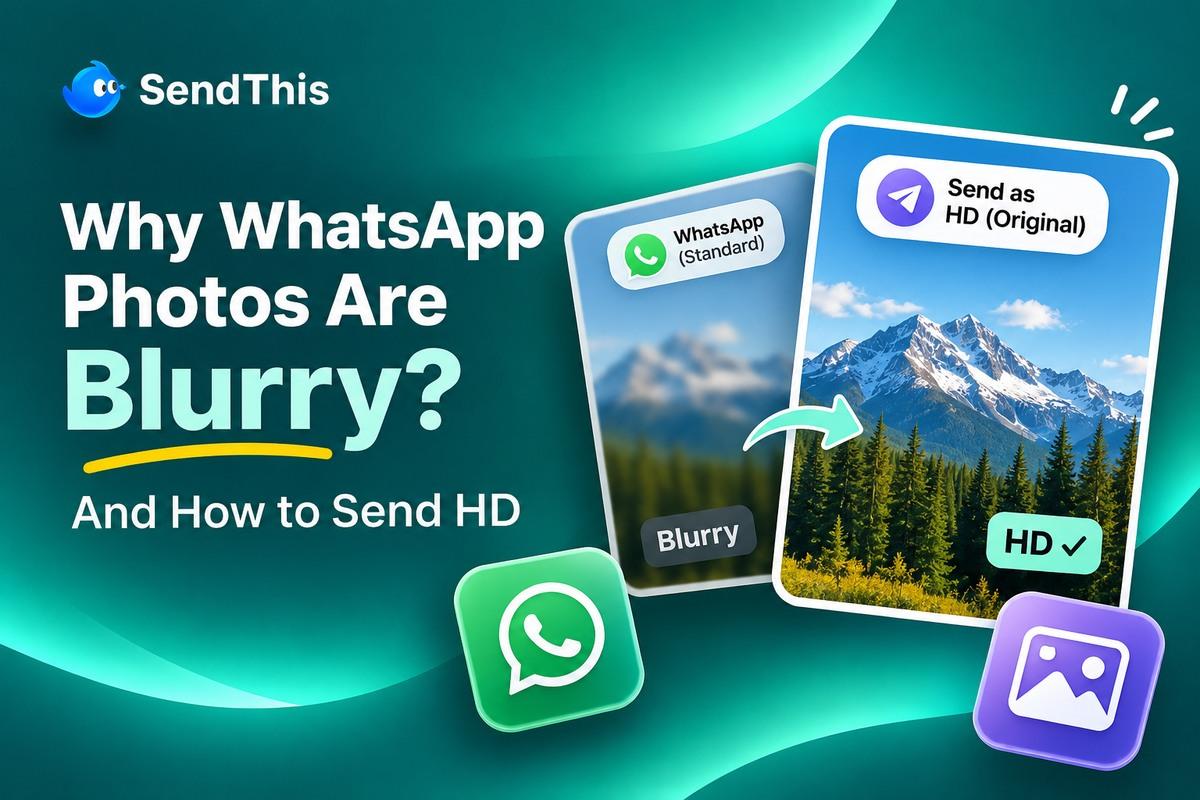
People capture stunning memories on high-end smartphone cameras only to watch the resolution plummet when sharing them online. Asking yourself why WhatsApp photos are blurry is incredibly common because the platform alters your files behind the scenes. When you realize that WhatsApp compresses photos aggressively, you can finally take steps to stop your memories from looking pixelated. Learning how to send original quality photos ensures your family and clients receive crisp, detailed images every single time.
Why WhatsApp Photos Are Blurry: WhatsApp automatically compresses standard images to save bandwidth and storage across global mobile networks, downscaling the longest edge to around 1,600 pixels and applying heavy lossy compression that can shrink a 4MB photo down to roughly 100KB, stripping fine details and metadata.
Quick Summary Box:
- The Bandwidth Problem: Messaging apps reduce quality to save server space and keep delivery speeds fast for billions of users.
- Standard vs. HD Modes: The default setting shrinks files drastically, while the HD button preserves more detail but still applies some compression.
- The Document Workaround: Sending photos as documents preserves the original file but removes the helpful visual preview in the chat.
- The Link Solution: Using a dedicated transfer link is the only way to share massive photo galleries without any quality loss.
Main Reasons Why WhatsApp Compresses Photos Automatically
The platform forces image compression on every standard upload to keep the app running smoothly across slower global mobile networks. WhatsApp routinely compresses standard photos and caps dimensions to manage heavy bandwidth loads across global mobile networks, while introducing higher-tier options to handle uncompressed media.
Here are the primary technical reasons why your vibrant pictures suffer from noticeable photo quality loss upon delivery:
- Aggressive File Size Shrinking:
- A standard smartphone picture often exceeds four megabytes in size when captured in good lighting.
- The platform forcibly shrinks that file down to around a hundred kilobytes to ensure it sends instantly.
- Permanent Pixel Resizing:
- The app physically alters the dimensions of your picture, capping the longest edge at roughly 1600 pixels.
- This downscaling destroys the fine textures in hair, clothing, and landscape elements permanently.
- Repeated Forwarding Degradation:
- Every time someone saves an image to their gallery and forwards it to another chat, it gets compressed again.
- This repeated cycle is why viral memes and old family photos look incredibly muddy after several shares.
Three Methods to Send Original Quality Photos Successfully
There are specific built-in methods you can use to bypass the worst of the default compression algorithms today. By adjusting a few settings, you can drastically improve how your digital memories look when they arrive.
- Understanding the Standard Quality Default Limits
Standard quality is the default setting that every single account uses unless explicitly changed by the user. It prioritizes speed over clarity, destroying fine details so messages deliver instantly on bad connections. You should never use this mode when sending important memories or professional photography deliverables.
- How the HD Button Helps Preserve Your Photo Detail
The HD button appears at the top of your screen right before you send an image in a chat. Selecting this option preserves a much higher resolution, keeping text and facial features noticeably sharper. However, it still applies a lightweight compression algorithm, meaning it is not a mathematically perfect original copy.
- Why iPhone Users Face Extra Compression Loss Always
Apple devices capture pictures using a highly efficient image format called HEIC by default. Because many older devices cannot read HEIC files, the app converts them into standard JPEGs before applying compression. This double conversion process degrades the image quality significantly more than a standard Android upload.
Why Does Document Mode Prevent Photo Quality Loss Completely?
Sending your image as a document tricks the platform into treating your picture like a generic office file. Because the system does not recognize it as a standard media upload, it skips the destructive compression pipeline entirely.
Consider these important workflow trade-offs before relying on the document method for your everyday media sharing needs:
- The Loss of Visual Previews:
- When you send an image this way, the recipient only sees a generic file icon instead of the picture.
- This forces people to download blind files without knowing what the image actually contains first.
- Slower Download Speeds for Recipients:
- Because the file retains its massive original weight, it takes much longer for your recipient to download.
- People on limited mobile data plans might avoid opening the file until they reach a stable Wi-Fi connection.
- Clunky Navigation for Large Galleries:
- Sending forty vacation pictures as individual documents floods the chat timeline and frustrates the recipient.
- Your friends have to tap and open every single document individually just to view the whole album.
Skip the attachment hassle. Upload your entire photo collection and share it through one simple link. Your recipients can preview and download the original images without WhatsApp’s compression.
Send High-Quality Photos With SendThis
How to Send Photos as Documents to Stop Blurry Images?
Bypassing the standard compression algorithm completely requires sending your picture as a generic digital document file. This method guarantees zero quality loss but removes the helpful visual picture preview from the conversation.
Step One: Open the Document Menu Inside Your Active Chat
Tap the attachment paperclip icon inside your message box and select the document option right away. This action opens your internal file manager instead of launching your standard visual camera roll gallery.
Step Two: Browse Your Phone Files to Find Your Pictures
Navigate through your system folders to locate the exact high-resolution photograph you want to share today. Apple users might need to save pictures to their files app before performing this exact action.
Step Three: Send the Uncompressed File to Your Recipient
Tap on your chosen file and press the send button to deliver the heavy uncompressed document. Your friend will receive a blank file icon that they must download to see the picture.
Share Original Photos Without Document Attachments
WhatsApp’s document method preserves your original image, but it makes sharing large photo galleries inconvenient. SendThis gives you another way to share high-resolution pictures without sacrificing image quality.
Upload your photos, create a shareable link, and let recipients view or download the original files directly in their browser. You don’t need to send dozens of individual attachments or ask recipients to install an app.
Whether you’re sharing vacation albums, client deliverables, or professional photography, SendThis makes original-quality photo sharing simpler.
How Messaging Apps Reduce Quality on Your Mobile Devices?
It is important to understand that almost every popular social platform relies on aggressive media shrinking to survive. When messaging apps reduce quality, they are protecting their massive server farms from instantly running out of storage space.
Compare how different digital sharing platforms handle your high-resolution media uploads to see the stark differences in quality:
| Platform Type | Compression Level | Visual Preview | Best Everyday Use Case |
| Standard Messengers | Extremely high. | Yes, instant inline viewing. | Sending quick, unimportant snapshots. |
| Social Media Stories | High (optimized for vertical). | Yes, full screen. | Temporary daily lifestyle updates. |
| Cloud Storage Drives | Zero compression. | Sometimes, requires app logins. | Long-term personal file backups. |
| SendThis Transfer Links | Zero compression. | Yes, clean browser previews. | Sharing pristine professional galleries. |
Try SendThis for Uncompressed Image Sharing Without Limits
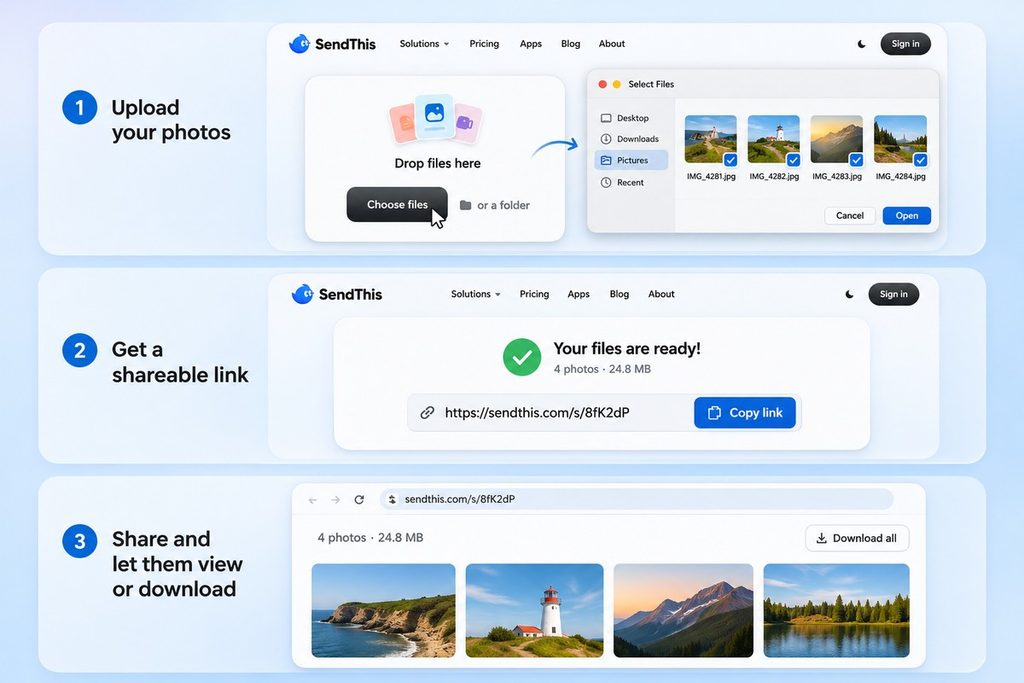
When you want to share a massive album of gorgeous pictures without fighting chat settings, SendThis is the perfect solution. You can deliver pristine, uncompressed memories directly to your clients or family members using one simple, ad-free link.
Here is why professionals use SendThis to bypass messaging app compression rules entirely:
- True Original Quality: Every single file arrives exactly as it was captured, preserving every pixel and color grade perfectly.
- Instant Browser Previews: Unlike clunky document attachments, your recipients can preview the high-resolution images beautifully right inside their web browser.
- Send Massive Galleries at Once: Stop flooding group chats with dozens of attachments; upload entire folders of photos behind one clean URL.
- Zero Ads on Your Pages: Give your friends and clients a premium viewing experience without any distracting banner ads cluttering the page.
Final Thoughts
Figuring out why WhatsApp photos are blurry is the first step toward better digital media habits. While adjusting built-in chat settings helps slightly, using dedicated transfer tools guarantees your files remain completely untouched.
Head over to SendThis right now to upload your original pictures and share them flawlessly with one simple link.
Frequently Asked Questions
- Do Status Updates Ruin Image Quality Too?
Yes, uploading media to your temporary status update applies to an entirely different, even more aggressive compression pipeline. The system squashes the file aggressively so that it loads instantly for everyone swiping through their daily updates. For the best results, crop your image to a vertical format before uploading it to avoid automated resizing.
- Can You Fix a Blurry Picture After Receiving It?
Unfortunately, once an image goes through the destructive compression process, the missing pixel data is gone forever. While artificial intelligence upscaling apps can guess the missing details, the result often looks unnatural and painted. The only true fix is asking the sender to share the original file using a dedicated transfer link instead.
- Do Chat Backups Save My Original High-Quality Pictures?
No, standard cloud chat backups only save the compressed versions that originally arrived on your mobile device. If you delete the original file from your camera roll, the chat backup will not restore the high-resolution version. Always back up your important photography directly to a dedicated hard drive to keep the original files safe.
- Does Sending Photos as HD Use More Mobile Data?
Yes, opting for HD mode sends higher resolution images that naturally require more data transfer. If you are on a limited cellular plan, sharing multiple HD images can quickly consume your monthly data allowance. Connecting to a stable Wi-Fi network before uploading HD photos is recommended to keep data usage low.
- Does WhatsApp Compress Videos as Much as Photos?
WhatsApp applies even heavier compression to video files than to standard static images to maintain quick playback times. High-frame-rate and 4K video clips are typically downsampled to lower resolutions and reduced bitrates upon delivery. To share uncompressed video footage, sending the file as a document or using a link service is the best solution.
- Can You Set HD Quality as the Permanent Default for Uploads?
WhatsApp allows users to configure high quality media upload preferences within the app storage and data settings menu. Selecting high quality media upload defaults ensures that your photos default to HD whenever possible without manual toggles. However, extreme high-end camera RAW files will still be compressed unless shared via document mode or external transfer link.
- Are Metadata and Location Details Removed During Standard Photo Sharing?
Standard image transfers strip out EXIF metadata, including camera settings, timestamp data, and precise GPS location information. This is done automatically by the platform to save file bandwidth and protect recipient privacy. If you need to preserve full photo metadata for legal or professional reasons, send the file as an uncompressed document.
- What Is the Maximum File Size Limit When Sending Photos as Documents?
WhatsApp allows documents up to 2GB in size to be transferred directly within a chat thread. This allows users to send massive batches of high-resolution images or large RAW files in a single file container. However, uploading giant files via cellular networks can be very slow and may fail on unstable connections.