Every creative professional knows the stress of sending final work and hearing nothing back from the busy client. Asking yourself did client download file deliveries wastes valuable hours when project deadlines are approaching fast this week. You need a simple way to know when a file is downloaded without bothering your client with awkward messages.
When you track downloads through a clean transfer link, you can see if the recipient opened file packages easily. This guide explains how to get reliable download confirmation while letting clients grab files without creating an account.
Quick Summary Overview:
- Stop Guessing on Delivery: Standard email attachments and open cloud folders rarely tell you whether an external client saved your files.
- Track Without Client Sign-Ins: Share files with a dedicated transfer link that counts page views and file downloads automatically.
- Zero Friction for Recipients: You sign in to send and track activity, while your client opens the link and downloads immediately.
- Activity Versus Formal Approval: Use view and download counts to confirm technical delivery, then ask clients directly for final creative sign-off.
Why Tracking Client Downloads Protects Your Deadlines and Workflow?
Clients often get buried in daily emails and claim they never received the files you sent last Tuesday. Wondering if the client downloaded file folders makes it hard to know whether you should follow up or wait.
Here is why having a clear download confirmation changes how you manage client projects every single work week:
- End the “I Never Got It” Excuse Before Launch Day:
- Deadlines slip quickly when a client realizes on launch morning that they cannot find your earlier delivery email.
- Checking your transfer dashboard shows you right away if the delivery page was opened and downloaded on time.
- If the counter still shows zero views before a meeting, you can resend the link with complete confidence.
- Spot Technical Hiccups Before Your Client Complains:
- Sometimes a client opens your transfer page several times but the actual file download counter remains at zero.
- Seeing page views without downloads tells you the client might be checking on a phone before downloading later.
- You can send a helpful note offering assistance instead of asking an annoying question about whether they looked.
- Keep Multi-File Handoffs Organized in One Dashboard:
- Sending loose attachments across email, chat apps, and text messages makes it impossible to remember what went out.
- Managing every delivery from one transfers dashboard lets you check view and download counts across all active projects.
- You always know which deliverables have been picked up and which links are about to expire this week.
Why Emails Fail When You Need a Fast Download Confirmation?
Many people still rely on regular email attachments or basic cloud storage drives when handing over important client work. Unfortunately, those everyday tools were never designed to give you a clear download confirmation for external client deliveries.
Review these three common traps to see why traditional sharing methods leave you completely in the dark today:
- Why Do Standard Email Attachments Leave You Guessing?
Once an email leaves your outbox, you have no way to know when a file is downloaded by recipients. Email read receipts only ask if the message was opened, and most email apps block or ignore them. Plus, Gmail stops attachments at 25 MB and Outlook caps at 20 MB, bouncing large files right away.
- Why Cloud Storage Links Confuse Your Busy Clients
Cloud drives only log detailed viewer activity when your client is signed into the exact same platform account. If a client is not signed in, they hit annoying login walls or send frustrating access request emails. When you make a folder public to avoid login walls, you lose reliable tracking on external file downloads.
- Why Shortened Links Never Prove File Downloads Now
Some freelancers wrap their cloud links inside URL shorteners hoping to track downloads through simple link click counters. However, a link shortener only records that someone tapped the link in their email or mobile chat app. It can never tell you whether the recipient actually stayed on the page and saved the heavy files.
Simple Ways to Know When File Is Downloaded Without Login
The easiest way to know when file is downloaded is to share your work through a dedicated link. You sign in to upload and track your transfers, while your client downloads without ever creating an account.
Follow these three simple principles to see if recipient opened file transfers without adding any friction for clients:
- Checking Page Views Versus Actual File Downloads
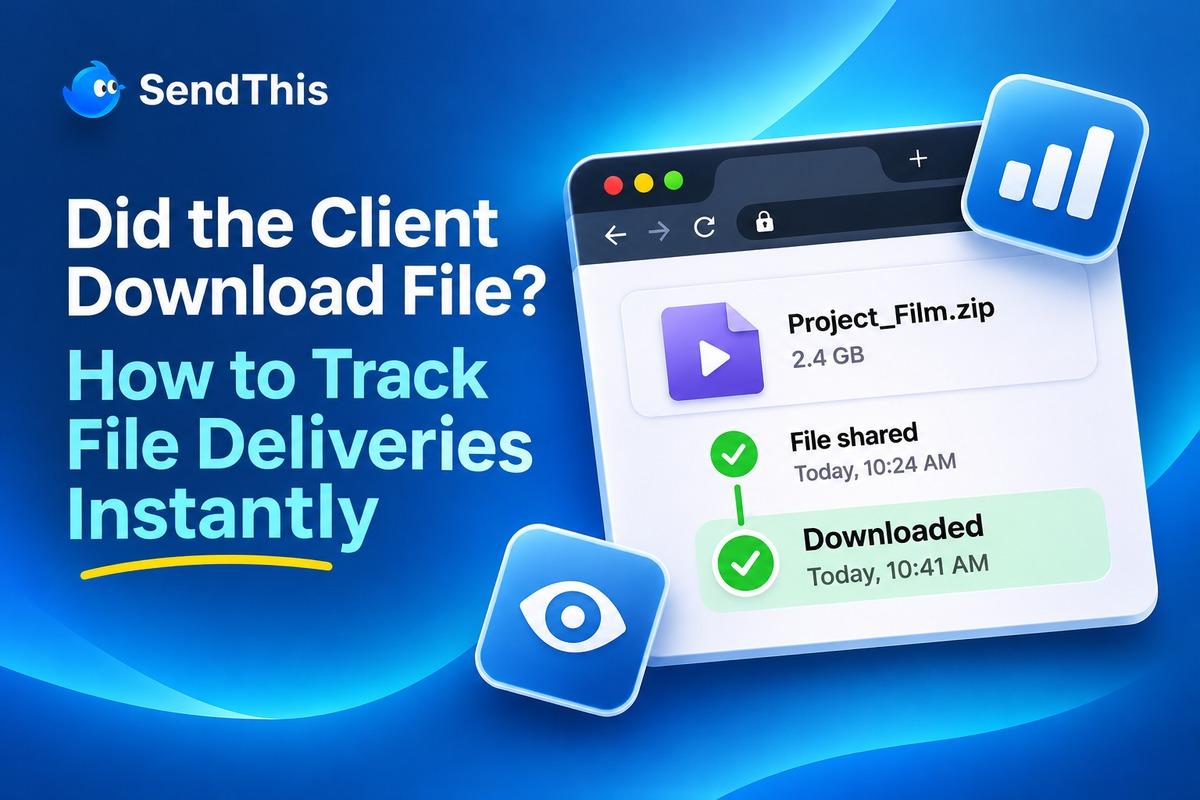
Every transfer inside your dashboard records two helpful numbers: how many times the page was viewed and downloaded. A page view means someone clicked your link and opened the clean delivery page inside their web browser. A download count confirms that the files were actually saved from the page onto a computer or phone.
- Letting Clients Preview Work Before Saving Copies
Clients often click a link on their phone just to take a quick look before sitting down later. When your transfer link supports browser previews for photos, videos, audio, and PDFs, clients can inspect work immediately. You will see the page-view counter rise right away, followed by the download count when they save originals.
- Keeping Whole Folders Together Under One Share URL
Sending five separate links for one project makes it painful to track downloads across all of your files. When you drop a whole folder into one transfer, every subfolder stays intact behind one single shareable link. Your client can save individual files they need or grab the whole folder as one zip package easily.
Best Tools to Track Downloads and See Client Activity Fast
Choosing the right delivery method ensures you never have to ask did client download file packages ever again. A dedicated file transfer tool gives you clear visibility while giving your client a fast, ad-free download page.
Compare these four common delivery methods to see how tracking, file size limits, and client experience stack up:
| Delivery Method | Download Tracking Visibility | Client Login Required? | Ads or Clutter on Page? | File Size Handling |
| Email Attachments | Zero visibility once the email leaves your inbox. | No extra login needed. | None, just inbox clutter. | Capped at 20 MB to 25 MB max. |
| Cloud Storage Drives | Limited; external guests often show no download logs. | Often hits sign-in walls or access requests. | Cluttered drive menus confuse clients. | Eats up your permanent drive quota. |
| Ad-Supported Transfer Sites | Basic status, often locks tracking behind verification walls. | Some modes force email verification codes. | Full-screen ads sit next to your work. | Free tiers cap files at 2 GB. |
| SendThis Transfer Links | Shows page-view and file-download counts on every transfer. | Never; clients open the link and download. | Zero ads on any plan, ever. | Carries gigabytes and whole folders easily. |
Use these practical features on SendThis to track your deliveries and keep total control over every shared link:
- Track Activity Without Forcing Client Accounts:
- You sign in to send so all of your links stay safe and searchable inside your transfers dashboard.
- The person receiving your files never needs an account; they simply open your link, preview, and download immediately.
- Deliver Work on an Ad-Free Page:
- Nothing looks less professional than making a client close pop-up ads just to download your finished brand work.
- SendThis has zero ads on the page you upload from and zero ads on the page clients open.
- Add Forgotten Files to the Same Tracked Link:
- If you realize you forgot a font or a revised PDF after sharing, do not send another link.
- Add the extra files or folders to the transfer you already shared so everything stays under one URL.
- Set Link Expiry or Revoke Access Anytime:
- Every transfer lets you choose when the link expires so old deliverables do not stay online for months.
- Once you see the download count and know the client saved their copy, you can delete it anytime.
How to See If a Recipient Opened File Across Creative Teams?
Different creative workflows need to see if the recipient opened file handoffs at key moments before a big deadline. Whether you run a busy studio or shoot weddings, tracking view and download counts keeps deliveries on schedule.
Explore how three different creative teams use simple link tracking to confirm delivery and protect their work daily:
- Creative Agencies Delivering Big Campaign Folders
When managing file sharing for agencies, teams hand over brand kits, print-ready masters, and social cuts under tight launch dates. Sending one organized folder link lets account managers check view and download counts well before campaign launch day. If a media partner has not downloaded the assets yet, the team can nudge them before deadlines pass.
- Photographers Sending Full Wedding and RAW Shoots
With file sharing for photographers, delivering uncompressed RAW camera files or hundreds of wedding JPEGs requires huge transfer capacity. Checking view and download counts lets photographers confirm that the couple or retoucher saved the shoot before expiration. Nothing is compressed or converted, and clients can download single favorite photos or the entire gallery as one zip.
- Freelancers Sharing Proofs and Video Rough Cuts
Independent editors, designers, and writers constantly send video cuts, audio mixes, and PDF contracts for quick client feedback. Sharing a link where clients can preview files in their browser and leave comments speeds up review rounds. Checking the view and download counters tells you when the client opened the cut so you can plan.
Smart Etiquette After You See If Recipient Opened File
While it is great to see if the recipient opened file links, knowing how to use that information matters. Understanding what view and download numbers actually prove helps you communicate with your clients politely and clearly.
Keep these three important rules in mind whenever you check your transfer numbers and follow up with clients:
- Never Treat Download Counts as Formal Client Approval:
- Page-view and file-download counts show technical activity on your transfer link, not proof that someone approved the work.
- Furthermore, because anyone holding the link can open it, counts alone do not prove which team member looked.
- Always ask your client for explicit written sign-off through your normal review process before sending files to print.
- Keep Your Follow-Up Messages Helpful and Friendly:
- If you see zero downloads after two days, never send an accusing message about the link sitting unopened.
- Instead, send a polite note reminding them when the transfer link expires and offering to extend it easily.
- Combine Tracking With Password Locks on Private Work:
- If you are sending unreleased campaigns or confidential contracts, add password protection so only invited people can enter.
- Send the transfer link by email and share the password separately so forwarded links stay safe from strangers.
Try SendThis to Track Downloads With Zero Client Sign-Ins
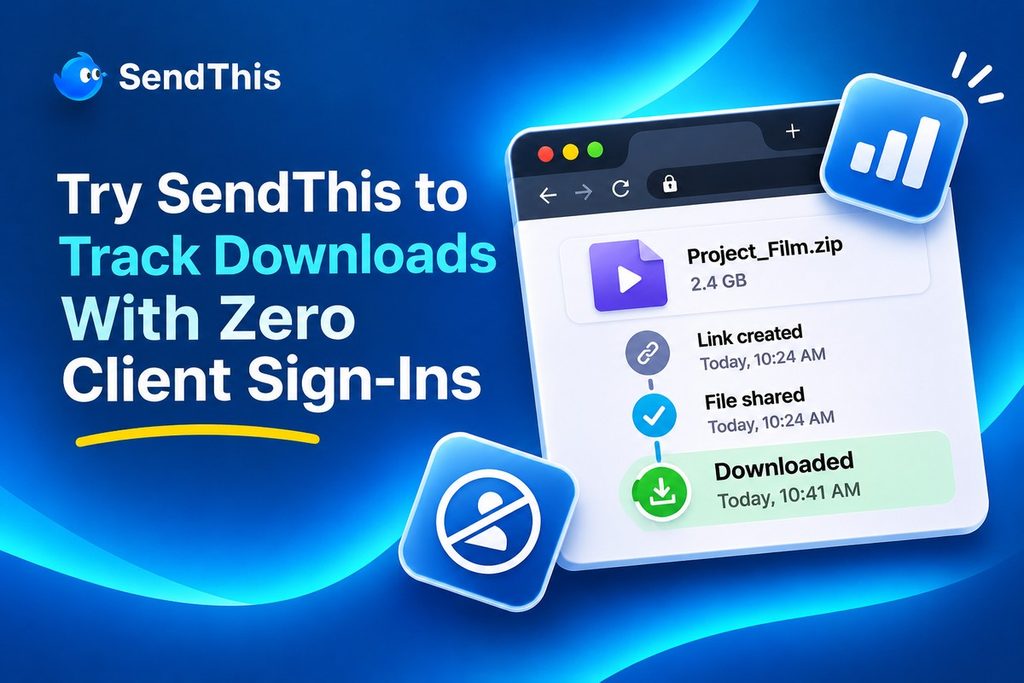
If you want to stop wondering did clients download file deliveries, SendThis gives you clear answers without annoying your clients. You upload your files or folders once, copy one clean link, and track every transfer from one dashboard.
Here is why creative teams, photographers, and freelancers use SendThis to deliver work and confirm downloads every day:
- See View and Download Counts Instantly: Every transfer shows how many times its page was viewed and how many times its files were downloaded.
- Clients Never Have to Sign In: Your recipient simply opens your link, previews the files in their browser, and downloads without creating an account.
- Zero Ads on Either End: Neither you nor your client will ever see an ad on the upload page or the download page.
- Resumable Chunked Uploads: If your Wi-Fi drops halfway through a massive upload, select the same files again to pick right up.
- Full Folder Structure and Post-Share Edits: Keep every subfolder intact behind one link, and add forgotten files later under that exact same shared link.
Did a Client Download a File You Shared Today?
Stop guessing if the client downloads file packages and switch to a clean transfer link that tracks activity automatically. When you can know when a file is downloaded without forcing client sign-ins, every project handoff stays on track.
Head over to SendThis right now to drop your files in, share one ad-free link, and track downloads effortlessly.
Frequently Asked Questions
- Does the Client Need an Account to Download Files?
No, the person receiving your files never needs to create an account or sign in to download anything. You sign in to send so your links stay safe in your dashboard where you can track downloads. That keeps file handoffs fast and welcoming for busy clients who refuse to create another login password online.
- Can Download Counts Prove a Client Approved Work?
No, page-view and file-download counts only show activity on a transfer link, not proof of formal client approval. They also cannot prove which specific person on a client team opened the link if it was forwarded. Always ask your client to confirm final decisions in writing or leave feedback comments directly on the file.
- What if a Client Viewed the Page Without Saving?
Seeing a page view with zero downloads usually means your client previewed the files inside their browser first. Because SendThis lets recipients preview supported photos, videos, audio, and PDFs, clients often check work on their phone first. You can simply follow up before the link expires to remind them to save their local master copies.
- What Happens if My Link Expires Before They Save?
When a transfer link reaches its expiration date, the page stops accepting downloads so old files never linger. Depending on your plan, you can set links that never have to expire or recover expired transfers easily. If a basic transfer runs out before your client downloads it, simply send a fresh link in seconds.